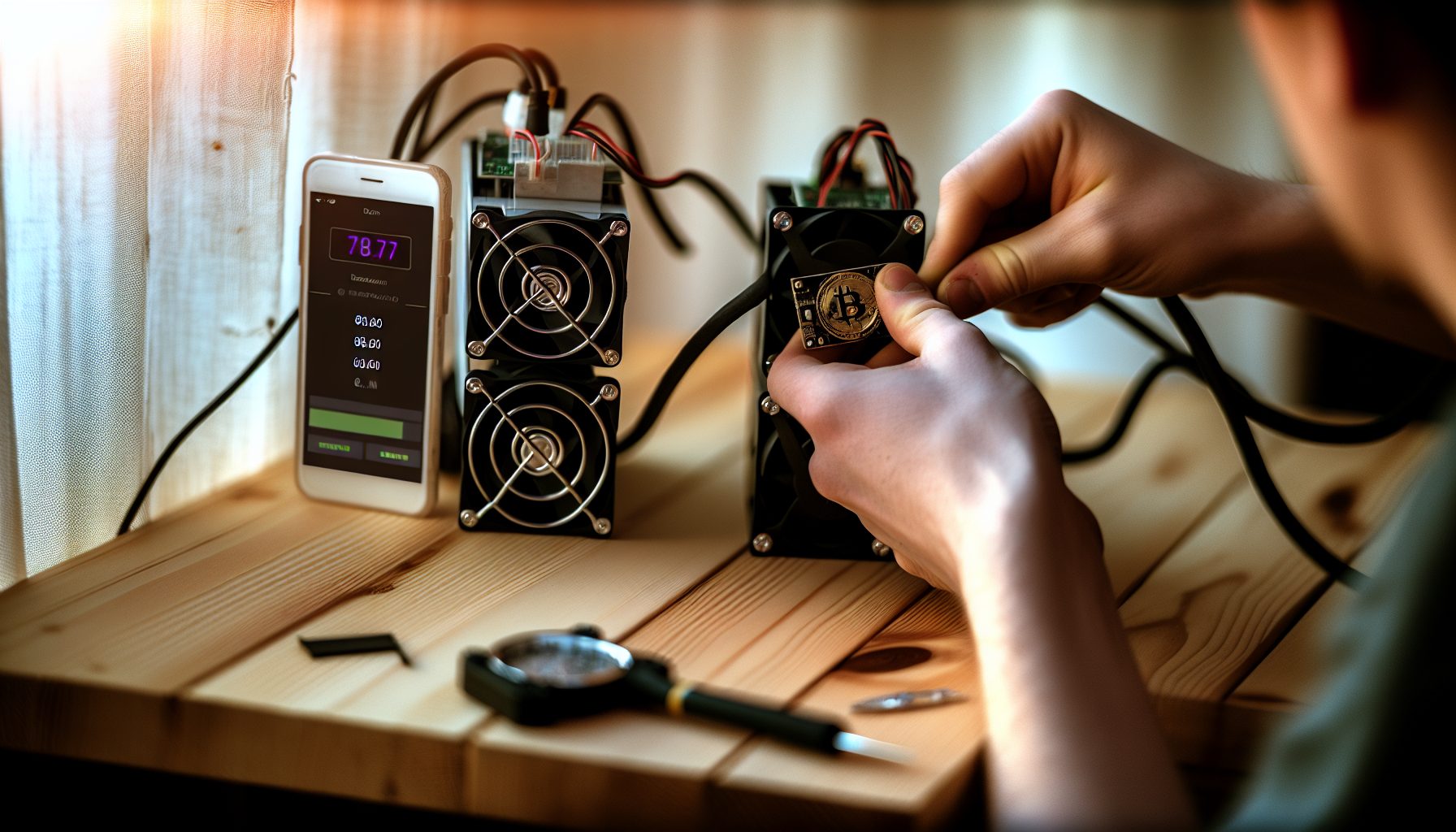
TL;DR: When you’re solo mining, every single hash matters because you’re chasing that one block by yourself. Overclocking squeezes more hashrate from your hardware, while undervolting cuts power consumption without sacrificing performance. I’ve been tuning my rigs for months — some tweaks gave me 15% more hashrate, others reduced my electricity bill by 30%. This guide shows you exactly how to tune ASICs and GPUs for solo mining, with real numbers and honest warnings about what can go wrong.
Why Overclocking and Undervolting Matter Way More for Solo Miners
Here’s the thing: Pool miners can get away with running stock settings because they’re splitting rewards constantly. You hit your expected earnings pretty reliably.
Solo mining is completely different.
You’re hunting for that one block — could be tomorrow, could be in six months. Every hash you’re not generating is another lottery ticket you didn’t buy. When I started solo mining Kaspa with my RTX 3070, I ran everything stock for the first month. Seemed fine, right? Then I learned about undervolting and realized I was wasting probably $15-20 a month on electricity for literally zero benefit. That’s $180-240 a year just… gone.
The math is brutal but simple. If you’re solo mining Bitcoin with an Antminer S19, you’re already looking at insane odds — maybe you find a block every 5-10 years with 100 TH/s. But if you can overclock to 110 TH/s? You just cut that time by 10%. That’s months off your expected block time. And if you can do it while actually reducing power consumption through undervolting? You’re paying less while mining more efficiently.
No joke: proper tuning is the difference between a rig that bleeds money and one that’s actually viable for solo mining.
The Technology Behind Overclocking and Undervolting
Before you start changing voltage curves and frequency settings, you need to understand what’s actually happening inside your mining hardware.
Overclocking means pushing your chip to run faster than the manufacturer’s default settings. Mining chips (whether GPU cores or ASIC processors) have a base clock frequency — basically how many calculation cycles they can perform per second. When you overclock, you’re increasing that frequency, which directly translates to more hashes per second. The catch? More speed generates more heat and draws more power. Sometimes a lot more power.
Undervolting is the opposite approach. You’re reducing the voltage supplied to the chip while trying to maintain the same clock speed. This is where the real magic happens for solo miners. Most hardware ships with voltage settings that have safety margins built in — manufacturers don’t want chips failing, so they overvolt slightly. By carefully reducing voltage, you can often maintain 95-100% of your hashrate while cutting power consumption by 20-30%.
The relationship between voltage, frequency, and power consumption follows a power law (roughly quadratic). Small voltage reductions create big power savings. But push too far and your system becomes unstable — you’ll get invalid shares, system crashes, or corrupted hashes that won’t find blocks even when they should.
For solo mining specifically, stability matters more than peak performance. A rig that crashes once a week and misses potential block solutions is worse than one running 5% slower but rock-solid 24/7. That’s why I always test tuning changes for at least 48 hours before considering them stable.
ASICs vs GPUs: Different Beasts
ASICs and GPUs require completely different tuning approaches.
ASIC miners like Antminer or Whatsminer units have limited tuning options. You’re typically adjusting frequency across all hashing boards and maybe voltage if the firmware supports it. The chips are purpose-built for one algorithm — SHA-256 for Bitcoin ASICs, for example. They’re already optimized, so there’s less headroom for improvement. But even 5-10% gains matter when you’re solo mining with those odds.
GPUs offer way more flexibility. You can adjust core clock, memory clock, power limit, and voltage curves independently. For mining algorithms like KHeavyHash (Kaspa) or Autolykos2 (Ergo), memory speeds matter as much as core speeds. I’ve found that undervolting the GPU core while actually overclocking memory often gives the best efficiency for solo mining Kaspa.
Practical Overclocking for Solo Mining Hardware
Let’s get into actual tuning. I’m going to walk through the process for both ASICs and GPUs, with real settings I’ve tested.
Overclocking Bitcoin ASICs (Antminer Example)
Most modern ASICs ship with stock firmware that’s… okay. Conservative settings that guarantee stability but leave performance on the table.
For an Antminer S19 Pro (stock: 110 TH/s at 3250W), here’s my process:
- Install custom firmware — Stock firmware locks most tuning options. I use either Vnish or BraiinsOS+ (both have free versions). This unlocks per-board frequency control and auto-tuning features.
- Baseline test — Run at stock settings for 24 hours. Record exact hashrate, power draw at the wall (use a Kill-A-Watt meter), and hardware error rate. Should be under 0.1% errors.
- Incremental frequency increases — Bump frequency by 25 MHz (about 2-3%) and test for 12 hours. If stable with errors still under 0.5%, increase another 25 MHz.
- Watch temperatures — Chip temps shouldn’t exceed 75°C. If you’re hitting 80°C+, your cooling can’t handle the overclock. Stop there.
- Monitor for 72 hours — Once you hit instability, back off 25-50 MHz and run for three full days. That’s your stable overclock.
On my S19 Pro, I hit 118 TH/s at 3450W before instability. Backed off to 116 TH/s at 3400W — that’s a 5.5% hashrate gain for only 4.6% more power. Worth it when you’re chasing solo blocks.
Don’t make my mistake: I once pushed an S19 to 122 TH/s because “more hashes = better odds.” One hashing board overheated and needed replacing. Cost me way more than any block would’ve paid for months. Know your limits.
Overclocking NVIDIA GPUs for Solo Mining
GPUs are where you can really dial in settings for efficiency. I’ll use solo mining Kaspa with an RTX 3070 as an example (that’s what I started with).
Tools you need: MSI Afterburner (Windows) or nvidia-settings + nvidia-smi (Linux). If you’re running HiveOS for solo mining, the tuning interface is built in.
Stock RTX 3070 numbers: ~480 MH/s at 120W on KHeavyHash (Kaspa’s algorithm).
My tuning process:
- Lock core clock — Set a fixed core clock around 1400-1500 MHz. This prevents the GPU from boosting unnecessarily.
- Increase memory clock — For Kaspa, memory bandwidth matters. I went +1000 MHz on memory (effective 16 Gbps). Test in 100 MHz increments.
- Set power limit — Start at 70% power limit. For the 3070, that’s about 120W down from 170W stock gaming power.
- Test stability — Run T-Rex miner for 6+ hours. Watch for rejected shares (should be under 1%) and memory errors (use nvidia-smi).
- Fine-tune — If stable, push memory another +100 MHz or drop power limit to 65%. If unstable, back off 100 MHz on memory or increase power limit 5%.
My final 3070 settings for solo mining Kaspa: 1500 MHz core, +1100 MHz memory, 70% power (115W). Results: 520 MH/s — that’s 8.3% more hashrate while using 4% less power than stock. Over a year of solo mining, that’s probably 50-60 kWh saved (depending on your rates, $6-12).
Overclocking AMD GPUs
AMD cards work differently. You’re adjusting core clock, memory clock, and core voltage (VDD).
For an RX 6700 XT mining Ergo (Autolykos2) solo:
- Core clock: 1300-1400 MHz — AMD cards often run too hot at stock gaming frequencies.
- Memory clock: 2150 MHz — GDDR6 memory is pretty stable; can often push to 2200 MHz.
- Core voltage: 725-750 mV — This is where AMD undervolting shines. Stock might be 1000+ mV.
- Power limit: -20% to -30% — Brings a 6700 XT from 180W down to 120-130W.
Use TeamRedMiner for AMD solo mining — it has built-in overclocking through command-line arguments if you’re on Linux.
Undervolting: The Secret Weapon for Solo Mining Efficiency
This is where you actually make solo mining viable on expensive electricity.
I’m in California where power costs are insane — around $0.35/kWh during peak hours. Without undervolting, solo mining GPUs would literally cost more in electricity than the expected block value for most coins. Undervolting changed everything.
GPU Undervolting Deep Dive
The voltage-frequency curve determines how much voltage your GPU needs to run at any given clock speed. By default, these curves have huge safety margins. You can usually shave 100-200 mV off without losing stability.
NVIDIA undervolting (MSI Afterburner):
- Open voltage/frequency curve editor (Ctrl+F in Afterburner)
- Find your target core frequency (e.g., 1500 MHz)
- Drag that frequency point down to lower voltage (try 800-850 mV)
- Flatten all frequency points above your target — they won’t be used
- Apply and test for 24 hours
For my RTX 3070 solo mining Kaspa, I locked 1500 MHz at 825 mV. Stock would’ve been 1050+ mV for that frequency. Power draw dropped from 120W to 100W — same 520 MH/s hashrate. That’s 20W savings, 24/7. Over a year: 175 kWh saved, about $61 at my power rates.
AMD undervolting (MorePowerTool or HiveOS):
AMD cards let you directly set voltage in the driver or through tools. I keep it simple:
- Set core voltage to 750 mV (start here for 6000-series cards)
- Test for stability
- If stable, drop to 725 mV and test again
- Find the minimum voltage that maintains your target hashrate
My RX 6600 solo mining Alephium runs at 700 mV core voltage, 1100 MHz core clock. Draws only 45W while delivering 80 MH/s on Blake3. Stock settings would’ve been 85W for maybe 85 MH/s — not worth the extra power cost at all.
ASIC Undervolting (Advanced)
ASIC undervolting is trickier and riskier. Not all firmware supports it.
BraiinsOS+ for Antminers includes an “auto-tuning” mode that essentially undervolts while maintaining target hashrate. It can cut 10-15% off power consumption. For an S19 Pro, that’s 325-490W saved — at $0.12/kWh, that’s $340-515 per year.
Manual voltage tuning on ASICs requires firmware that exposes voltage controls. You’re adjusting the power supply voltage to the hashing boards. Drop voltage in 0.02V increments, test for 24 hours, check error rates. If errors spike above 1%, you’ve gone too far.
Honestly? For ASICs, I recommend sticking with firmware auto-tune unless you really know what you’re doing. I’ve seen people brick $2000+ miners by setting voltages too low.
Monitoring and Stability Testing for Solo Mining
You can’t just set overclocks and walk away. Solo mining requires rock-solid stability.
A pool miner who crashes for 2 hours loses 2 hours of steady payouts — annoying but not catastrophic. A solo miner who crashes right as their next block should’ve been found? You literally lost thousands of dollars in block rewards.
What to Monitor
For GPUs:
- Hashrate stability — Should vary less than 2-3% over 24 hours. Set up a monitoring dashboard with alerts.
- Rejected/invalid shares — Should be under 1%. Anything above 2% means instability.
- Memory errors — Use nvidia-smi or AMD memory error counters. Any errors mean you’ve pushed memory too far.
- GPU temperature — Keep under 70°C for longevity. 75°C is okay, 80°C+ will reduce lifespan.
- Memory junction temperature — Especially critical for GDDR6X cards (RTX 3080/3090). Keep under 95°C; 100°C+ will throttle or damage memory.
- Power draw — Should be consistent. Big fluctuations indicate instability.
For ASICs:
- Hash rate per board — Most ASICs have 3 hashing boards. Watch for one board dropping hashrate — sign of failure.
- Hardware error rate — Under 0.5% is good. Over 2% means you’re unstable or have failing chips.
- Chip temperatures — All chips should be within 5-10°C of each other. One hot chip? Cooling problem or failing hardware.
- Fan speeds — Should be consistent. Ramping up/down constantly indicates temperature problems.
I use custom scripts that ping my miners every 5 minutes and alert me (Telegram bot) if hashrate drops more than 10% or hardware errors spike. When you’re solo mining and checking for blocks maybe once every few months, you need to know immediately if something breaks.
Long-Term Stability Testing
This is critical. Settings that seem stable for 12 hours might crash after 3 days. Settings that work in winter might become unstable in summer when ambient temps rise 15°C.
My testing protocol:
- Initial test: 48 hours — If it crashes or shows high errors, settings are too aggressive.
- Secondary test: 7 days — Catches edge cases and rare instability.
- Seasonal test — Retest when outside temperature changes significantly. I had “stable” GPU overclocks that became unstable when summer hit and room temps went from 20°C to 28°C.
Don’t make my mistake: I once ran an “optimized” RTX 3080 for a month, thought everything was fine. Then I checked logs and realized it had been restarting 2-3 times per week, losing 30 minutes of mining each time. For solo mining, that could’ve been the difference between finding a block or not.
Real-World Examples: Costs, Savings, and ROI
Let’s run actual numbers for typical solo mining scenarios.
Example 1: Solo Mining Bitcoin with Antminer S19 Pro
Stock settings:
- Hashrate: 110 TH/s
- Power: 3250W
- Electricity cost (at $0.12/kWh): $280/month
Overclocked (BraiinsOS+ auto-tune):
- Hashrate: 116 TH/s (+5.5%)
- Power: 3150W (-3%)
- Electricity cost: $272/month
Results: You’re getting 5.5% more hashrate while actually reducing power costs by $8/month. That’s $96/year saved on electricity alone. More importantly, your odds of finding a block just improved by 5.5%. For solo mining at these odds (roughly 1 block every 6 years at 110 TH/s with current difficulty), that 5.5% gain means you’d statistically find your block about 11 days sooner.
At current Bitcoin price of $66,312, one block is worth 3.125 BTC plus fees — call it $200,000+. Getting that block 11 days earlier is worth… well, it’s priceless in solo mining terms.
Example 2: Solo Mining Kaspa with RTX 3070
Stock settings:
- Hashrate: 480 MH/s
- Power: 120W
- Electricity cost (at $0.15/kWh): $13/month
Optimized (undervolted + memory OC):
- Hashrate: 520 MH/s (+8.3%)
- Power: 100W (-17%)
- Electricity cost: $11/month
Results: You’re saving $24/year in electricity while mining 8.3% more efficiently. Kaspa difficulty is lower than Bitcoin, so solo mining is actually viable with a few GPUs. At 520 MH/s, you might find a block every 2-4 months (depending on network hashrate). That 8.3% hashrate gain could mean finding blocks 7-10 days sooner on average.
Kaspa blocks are worth 300 KAS ($0.0293 each, so roughly $45-60 per block depending on price. Not life-changing money, but the improved efficiency adds up. If you’re running 6 cards, that’s $144/year saved on electricity — basically one free block per year just from better tuning.
Example 3: Solo Mining Ergo with RX 6700 XT
Stock settings:
- Hashrate: 170 MH/s
- Power: 180W
- Electricity cost (at $0.20/kWh): $26/month
Undervolted:
- Hashrate: 168 MH/s (-1.2%)
- Power: 125W (-31%)
- Electricity cost: $18/month
Results: You lose 1.2% hashrate but cut power by 31% — that’s $96/year saved. For solo mining Ergo where you might hit a block every 3-6 months with one card, the tiny hashrate loss is worth the huge electricity savings. Plus, lower power means lower temps, which means longer GPU lifespan.
Honest Warnings and Risks You Need to Know
I’m not going to sugarcoat this: tuning hardware for solo mining can go wrong.
Hardware Damage Risks
Overclocking increases heat and stress. Push too hard and you can permanently damage components.
I killed an RTX 3080’s memory by running memory clock +1500 MHz for three months. Card would boot but couldn’t mine anymore — memory errors everywhere. That was a $600 lesson in “don’t be greedy.” Insurance and manufacturer warranties usually don’t cover overclock damage.
ASICs are even riskier. Overvoltage a hashing board and you might fry the entire thing. Replacement boards cost $400-800 depending on model. One mistake can wipe out months of mining profit.
Safe practices:
- Increase settings gradually (2-5% at a time)
- Test for days, not hours
- Monitor temperatures obsessively
- If something feels too good to be true (20% hashrate gain with no downsides), it probably is
Electricity Cost Reality Check
Overclocking usually increases power consumption. Make sure the math actually works.
If you’re paying $0.30+/kWh (looking at you, Germany and California), every extra watt matters enormously. An extra 100W costs you $262/year at $0.30/kWh. If your overclock gives you 5% more hashrate but costs an extra 100W, you’re probably losing money unless you’re solo mining a coin with frequent block finds.
For Bitcoin solo mining where you might not find a block for years, higher electricity costs from overclocking are basically guaranteed losses for potential future gains. Really think about this trade-off.
Stability vs. Maximum Performance
The absolute highest hashrate settings are almost never the most stable.
When solo mining, I’d rather run 5% slower but 100% stable than run at maximum speed and crash once a week. A crash at the wrong moment could mean missing your one block opportunity. That’s not a risk worth taking for a tiny hashrate bump.
My rule: If settings crash even once in 7 days of testing, they’re not stable enough for solo mining. Back off and accept the slightly lower performance.
Advanced Optimization: Mining Algorithms and Tuning
Different mining algorithms respond differently to overclocking and undervolting. This affects your solo mining strategy.
SHA-256 (Bitcoin): Pure compute intensity. Core clock matters most. Overclocking helps, but you’re fighting against purpose-built ASICs with very little room for improvement. For GPUs, SHA-256 mining is basically dead — ASICs are millions of times more efficient.
KHeavyHash (Kaspa): Memory bandwidth is critical. For GPUs solo mining Kaspa, overclocking memory often gives better gains than overclocking core. I’ve found that undervolting core to 850 mV while pushing memory +1000 MHz gives better hashrate-per-watt than any other combo on NVIDIA cards.
Autolykos2 (Ergo): Balanced between core and memory. AMD cards excel here. Undervolting core to 700-750 mV while keeping memory at 2100-2150 MHz is the sweet spot. Core clock around 1300 MHz.
Blake3 (Alephium): Extremely core-heavy. Memory clock barely matters. You can often underclock memory to save power without losing hashrate. Focus all your optimization on core efficiency.
Understanding your algorithm helps you tune more effectively. Don’t waste time overclocking memory if your algorithm doesn’t use it.
Tools and Software for Overclocking Solo Mining Rigs
Here’s what I actually use, not theoretical recommendations.
For NVIDIA GPUs:
- MSI Afterburner — Windows standard. Voltage curve editor is essential for undervolting.
- nvidia-settings + nvidia-smi — Linux command-line tuning. Works great with Linux solo mining setups.
- HiveOS — If you’re running multiple GPUs, HiveOS makes tuning way easier with per-card settings saved in profiles.
For AMD GPUs:
- MorePowerTool — Unlocks voltage controls that AMD normally restricts. Windows only.
- CoreCtrl — Linux GUI for AMD tuning. Open source, works well.
- amdmemtweak — Command-line tool for memory timing adjustments. Advanced users only.
For ASICs:
- BraiinsOS/BraiinsOS+ — Best firmware for Antminers. Auto-tuning feature is legitimately good.
- Vnish — Alternative Antminer firmware. More manual control, steeper learning curve.
- AwesomeMiner — Monitoring and management for multiple ASICs. Expensive but solid if you’re running many units.
Monitoring:
- Custom scripts — I use Python scripts that query miner APIs and alert via Telegram. Check the monitoring dashboard guide for setup details.
- Prometheus + Grafana — Professional-grade monitoring. Overkill for small setups but beautiful for data nerds like me.
My Personal Overclocking Journey and Lessons Learned
When I first started solo mining, I thought overclocking was just “make number go up.” Pushed everything to maximum, figured more hashrate = better odds.
I was so wrong.
My first attempt was with an RTX 3070 solo mining Kaspa. I cranked core clock +200 MHz, memory +1500 MHz, power limit to 110%. Hashrate jumped from 480 MH/s to 580 MH/s — I was pumped. Finally going to find blocks way faster, right?
Three things happened: First, power draw went from 120W to 185W. Second, the card started hitting 82°C constantly (it was summer). Third, after about two weeks, I started getting memory errors and the hashrate would randomly drop to 400 MH/s for a few minutes before recovering.
I checked my logs and realized the card had actually crashed and restarted six times in two weeks. Each restart meant 5-10 minutes of downtime while Windows and the miner software restarted. For solo mining, those crashes could’ve been the exact moments I should’ve found a block. Terrifying thought.
I backed everything off, studied undervolting, and rebuilt my settings from scratch. Final result: 520 MH/s at 100W, completely stable for three months straight, zero crashes. Slightly lower hashrate than my “optimized” settings, but actually stable and way more efficient.
That’s when I learned: Solo mining isn’t about pushing hardware to the absolute limit. It’s about finding the best balance of performance, efficiency, and rock-solid stability that lets you mine 24/7 without issues.
FAQ: Overclocking and Undervolting for Solo Mining
Is overclocking worth it for solo mining, or should I just run stock settings?
It depends on your electricity costs and hardware. For expensive power ($0.25+/kWh), undervolting is definitely worth it — you’ll save 20-30% on electricity for maybe 1-3% hashrate loss. Overclocking is worth it if you can gain 5%+ hashrate without significantly increasing power consumption or risking stability. In most cases, I’d say undervolting is more valuable than overclocking for solo miners because stability and efficiency matter more than peak performance.
Can undervolting damage my mining hardware?
Undervolting is generally safe — you’re reducing stress on components. The worst case is usually system instability (crashes or errors), not permanent damage. That said, extreme undervolting combined with overclocking can cause weird behavior. I’ve never damaged hardware from undervolting alone, but I always test thoroughly for stability. If settings crash your system, just reset to defaults and start over.
How much can I realistically save by undervolting my solo mining rig?
For GPUs, you can usually save 20-30% on power consumption with minimal hashrate loss (under 5%). For a single RTX 3070 mining Kaspa, that’s about $20-30/year at average electricity rates. For a 6-GPU rig, it’s $120-180/year. For ASICs, BraiinsOS auto-tuning can save 10-15% power on Antminers — that’s $300-500/year for an S19 Pro. The savings scale with your operation size.
Should I overclock memory or core clock for GPU solo mining?
It depends on the mining algorithm. Memory-intensive algorithms like KHeavyHash (Kaspa) benefit more from memory overclocking. Core-heavy algorithms like Blake3 (Alephium) benefit from core overclocking. For most algorithms, I’ve found that undervolting the core while moderately overclocking memory gives the best efficiency. Start by testing memory +500 MHz and core voltage -100 mV, then adjust based on results.
How long should I stability test overclocking settings before trusting them for solo mining?
Minimum 48 hours for initial testing, then 7 days before considering settings “stable.” For solo mining where every hash matters and you can’t afford crashes, I’d say 14 days is ideal. Also retest when seasons change — settings stable in winter might crash in summer when temperatures rise. If you see even one crash or high error rates during testing, back off your settings. Stability is more important than maximum hashrate when you’re chasing solo blocks.